
Overview
The Infirmary helps you stay informed about your child’s health while they are at school.
Whenever a student visits the school infirmary, the school records the visit and shares a summary document (PDF) through the app. You can easily view and download this document anytime.
This means:
- Parents know when their child received medical care
- Students can review their visit details
- All records are saved in one place for future reference
Before you begin
Make sure:
- You are logged into the school app or web portal
- You have access to your child’s profile
- You have a stable internet connection (to open PDF files)
Step-by-step instructions
- Open the Infirmary Module
- Log in to the school app or website
- Go to the Student Profile
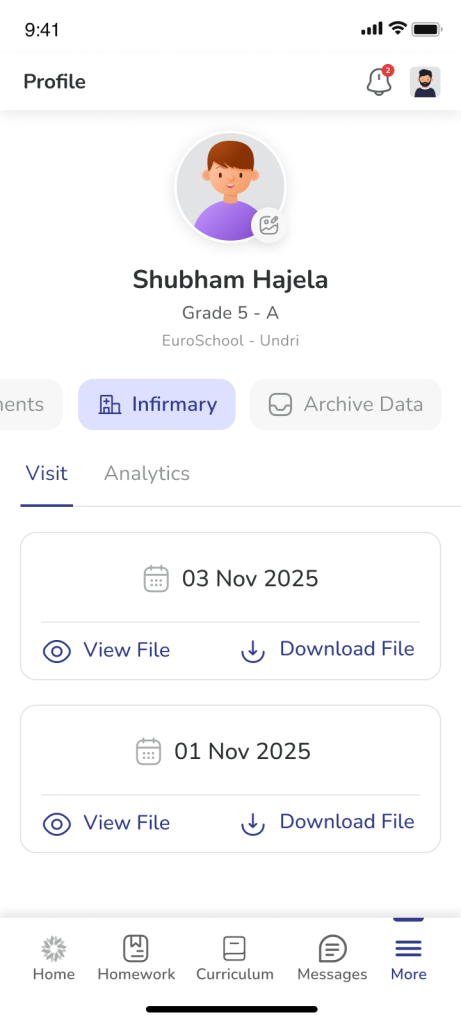
- Click or tap on the Infirmary tab
- View all infirmary visits
- Once inside the Infirmary section, you will see a list of visits
- Each visit shows the date of the visit
- Newest visits appear at the top
- Open a visit report
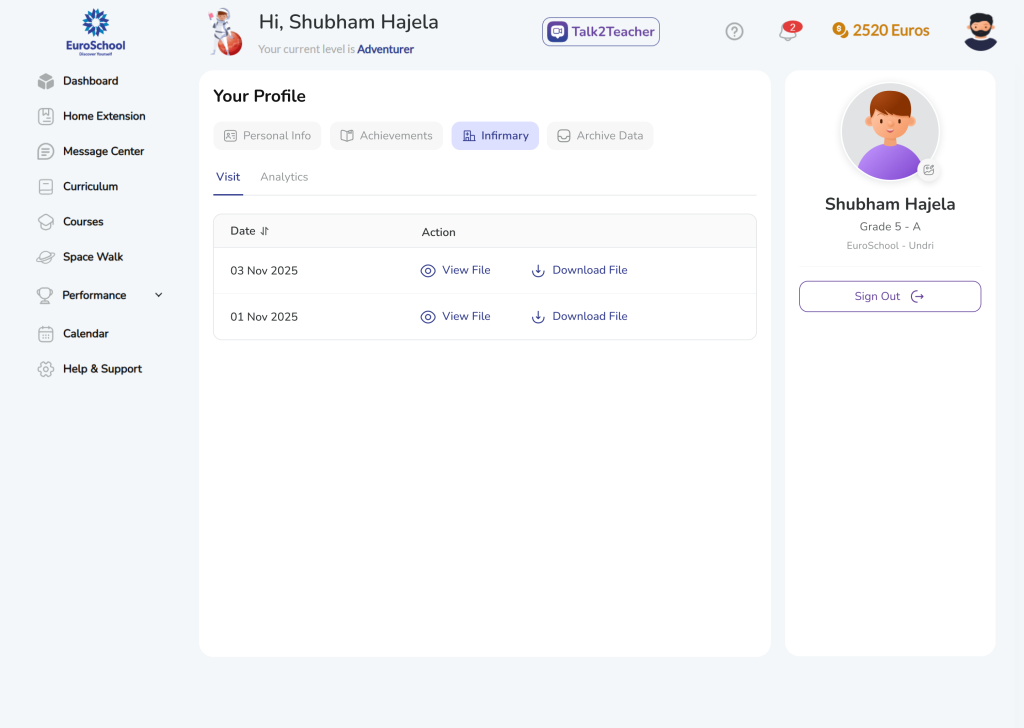
- Find the visit you want to check
- Click or tap View File
- The document will open on your screen
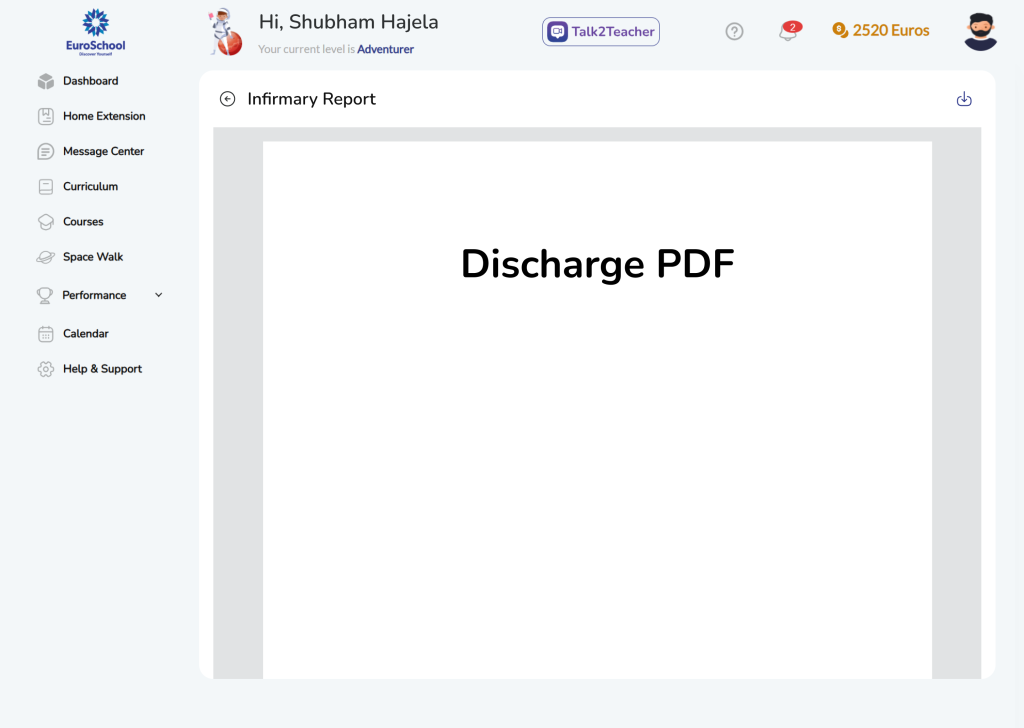
- Download the report
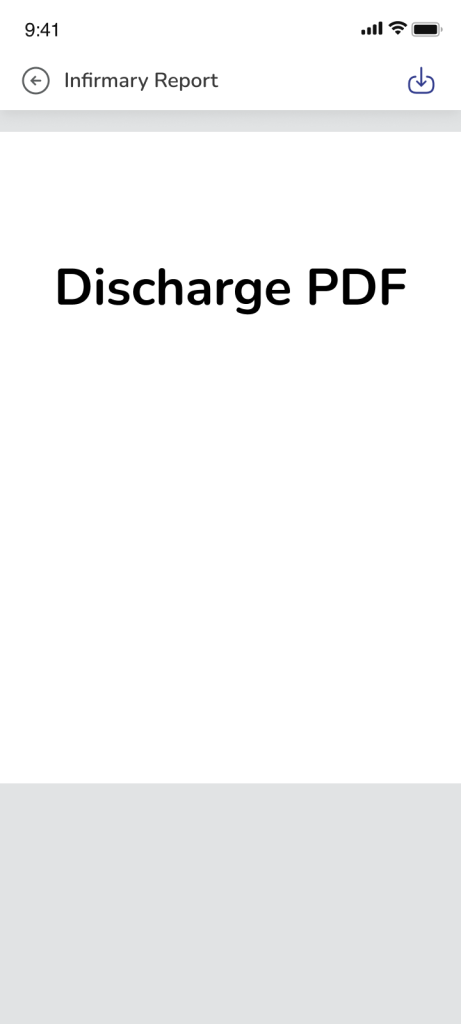
- Open the report
- Click or tap the Download button
- The file will be saved to your device
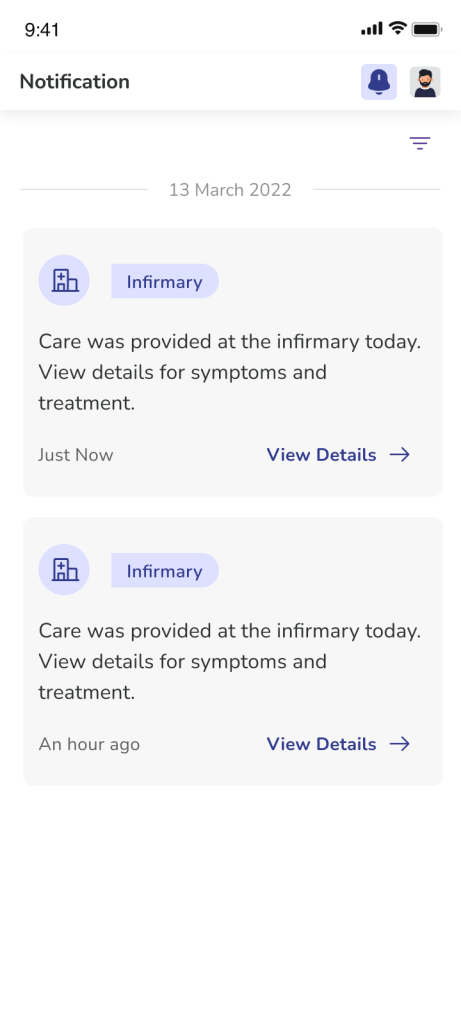
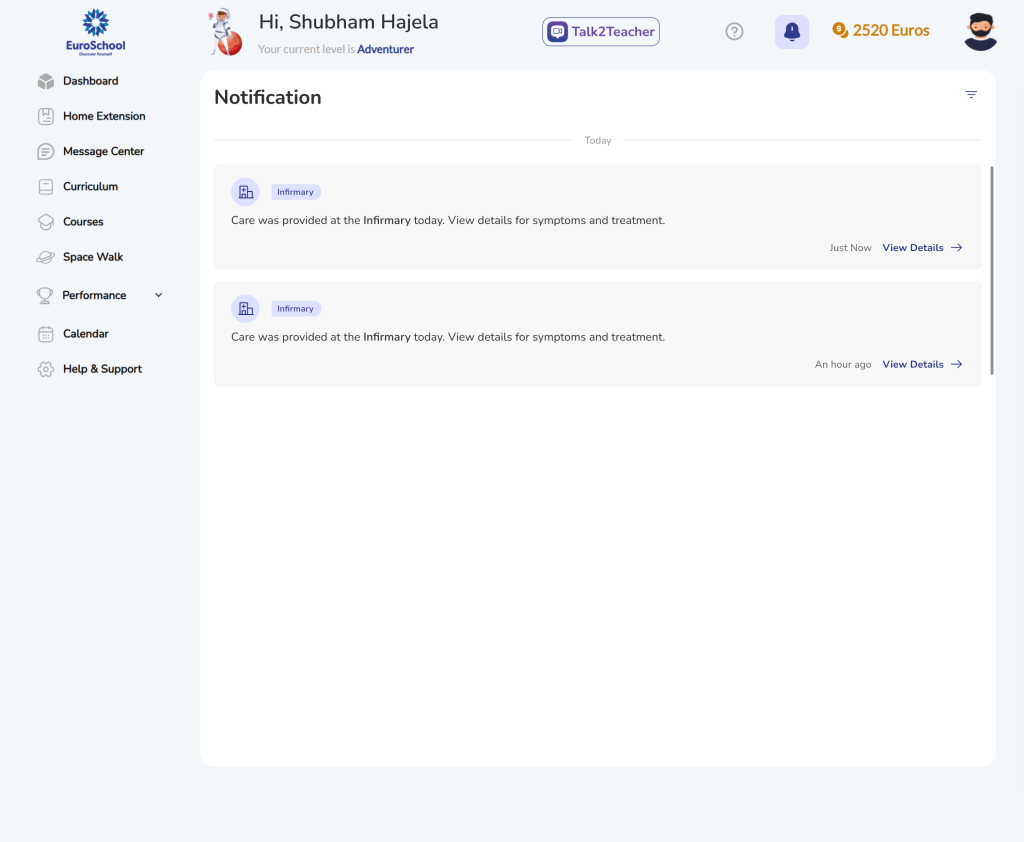
- Open from a notification
- When your child visits the infirmary, you will receive a notification
- Tap the notification
- You will be taken directly to the Infirmary section
- Open the latest visit to see details
Tips
- Check the Infirmary section regularly if your child is unwell
- Download reports if you need to share them with a doctor
- Make sure your app notifications are turned on so you don’t miss updates
- Always check the latest visit at the top
Frequently Asked Questions (FAQs):
There could be a few reasons:
- Your child has not visited the school infirmary recently
- The school has not yet uploaded the visit details
- There may be a slight delay in updating the record
Try checking again after some time. If the issue continues, you can contact the school.
If the report does not open:
- Check your internet connection
- Try reopening the file after a few seconds
- Refresh the page or restart the app
If it still doesn’t work, the file link may be temporarily unavailable. Please contact the school.
Possible reasons:
- Notifications may be turned off in your app settings
- There could be a delay in the notification
- The app might not have been opened recently
You can still check all records directly in the Infirmary section.
Try the following:
- Check if your device allows downloads
- Ensure you have enough storage space
- Try using a different browser or device
No.
All records are created and shared by the school’s health system.
They are view-only and cannot be edited or deleted.
The visits are arranged in order, with the most recent visit shown at the top
If you notice any incorrect information:
- Please contact your school administration directly
- They will coordinate with the health team to resolve it
