Overview
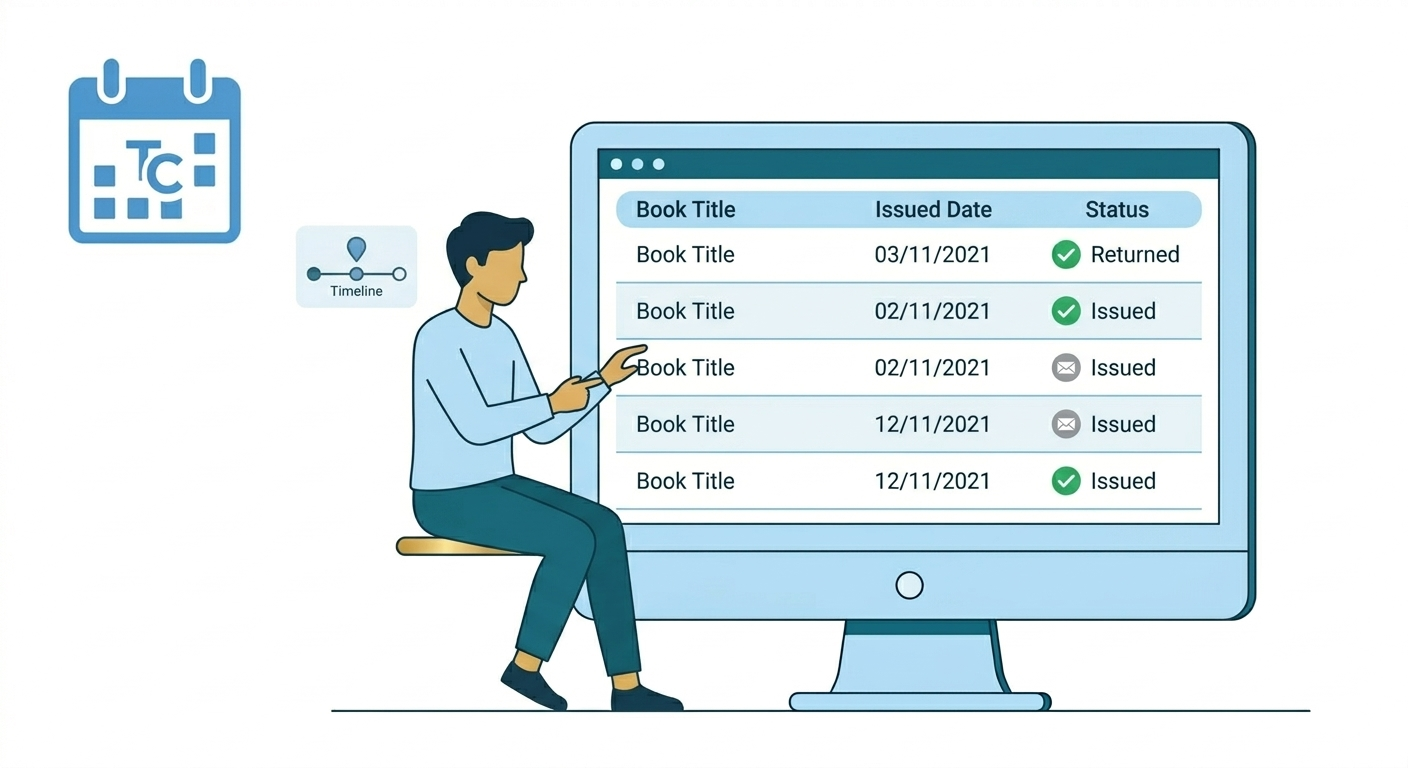
The Library helps you keep track of books issued from the school library. It shows which books are currently borrowed, when they need to be returned, and whether any books are overdue.
This makes it easy for both parents and students to stay informed and avoid missing return dates.
Before You Begin
Before using the Library module, make sure:
- You are logged into the school app or web portal
- Your account has access to the student profile
- The school has issued books through the library system
If no books have been issued yet, the Library section may show a “No books yet” message.
Step-by-Step Instructions
- Open the Library Module
- Log in to the school app or website
- Go to the Student Profile
- Click or tap on the Library tab
- View Book History
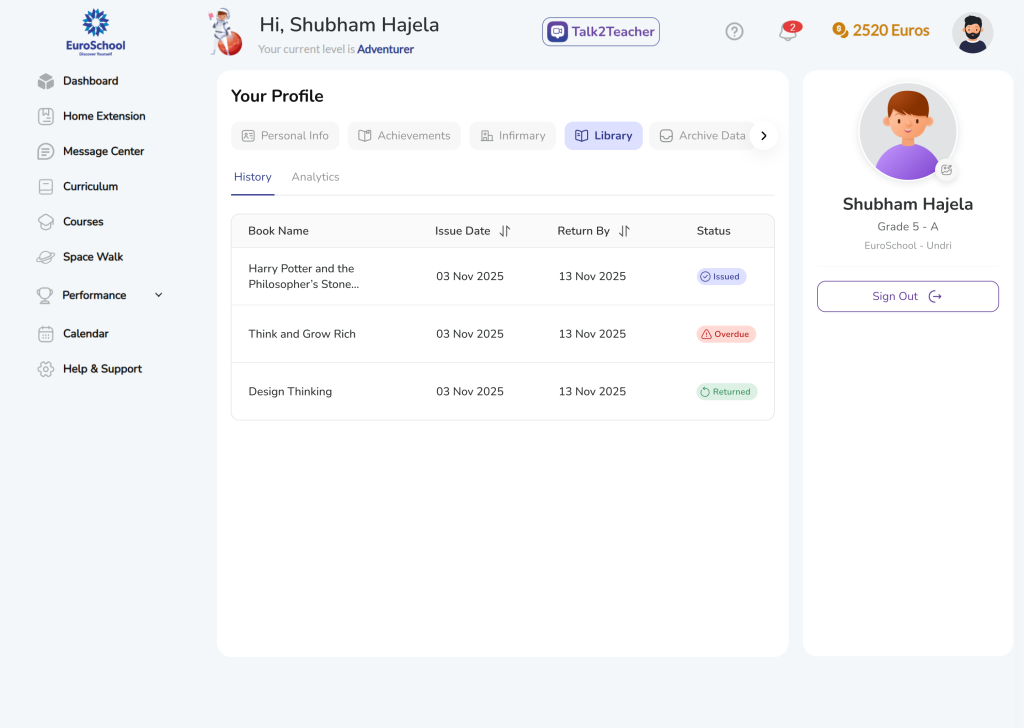
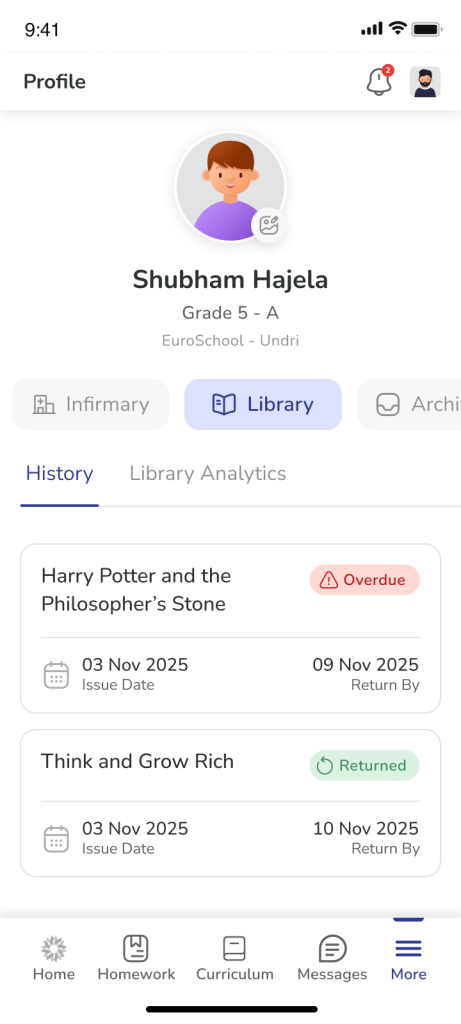
- Inside the Library tab, open the History section
- You will see a list of books
Each row/card shows:
- Book Name
- Issue Date
- Return By (the last date to return the book)
- Status (Issued / Returned / Overdue)
- Check Return Dates
- Find the book in the list
- Look at the Return By column
This is the date by which the book should be returned.
Example:
If “Return By” is 10 March, the book should be returned on or before that date.
- Understand Book Status
Each book has a status:
- Issued → Book is currently with the student
- Returned → Book has been given back to the library
- Overdue → Return date has passed, and the book is still not returned
- View Notifications
You will receive updates when:
- A book is issued
- A book is returned
- A book becomes overdue
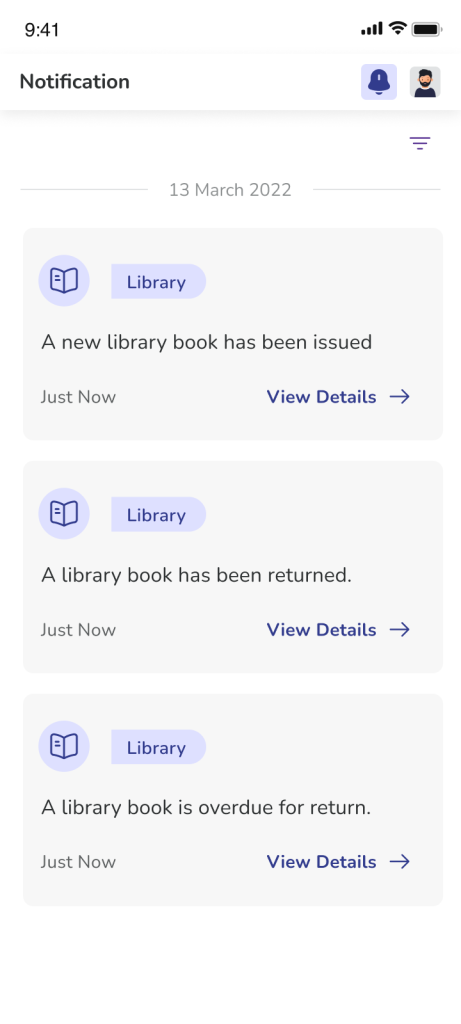
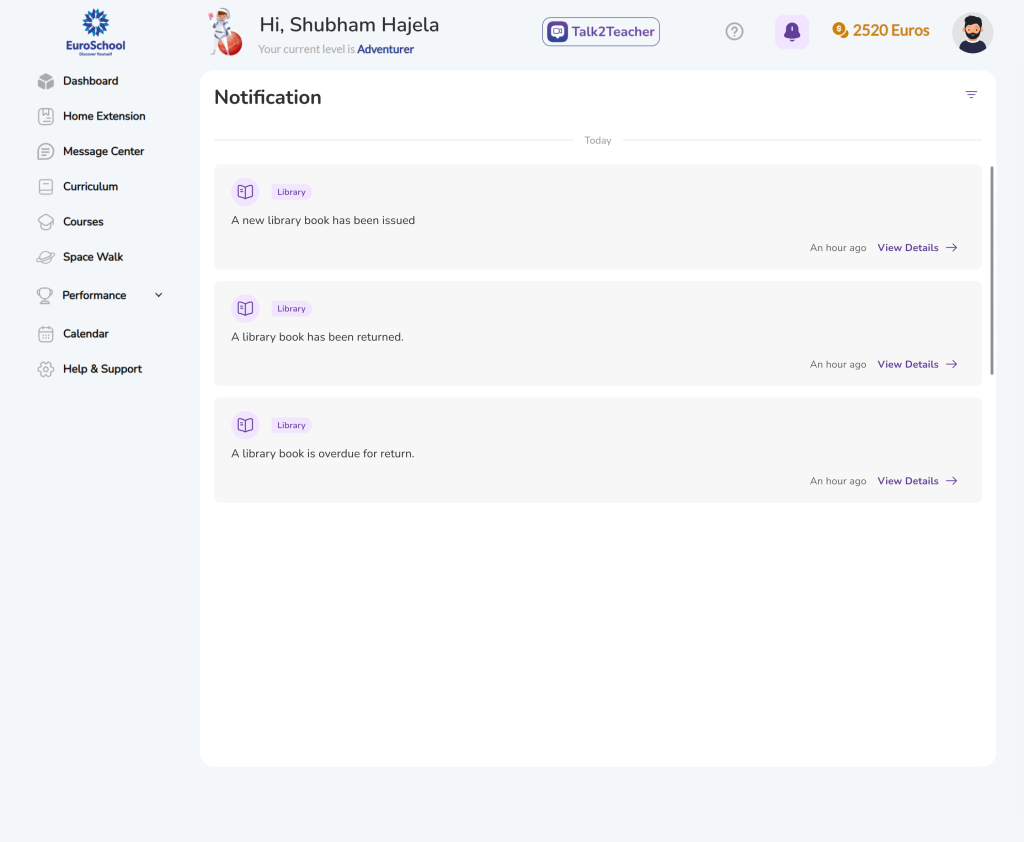
To check notifications:
- Tap the Bell icon
- Open the Library notification
- Tap View Details to go to the Library section
Tips for Using the Library Module
- Check the Library section once a week
- Always look at the Return By date
- Return books early to avoid overdue reminders
- Use notifications as quick reminders
Frequently Asked Questions (FAQs):
The Library section shows all books issued from the school library. It helps track:
- Which books are currently borrowed
- When they need to be returned
- Whether any books are overdue
- Log in to the app or website
- Open the Student Profile
- Click on the Library tab
This usually means no books have been issued yet.
Once a book is issued from the school library, it will appear here automatically.
Parents can:
- See which books are issued
- Check return dates
- Monitor if any books are overdue
- Receive notifications about library activity
Students can:
- See all books they have borrowed
- Check when each book needs to be returned
- Avoid overdue books by returning on time
Check the “Return By” date next to the book.
This is the last date to return the book.
If a book shows as Overdue, it means the return date has passed.
Please ensure the book is returned to the school library as soon as possible.
This can happen if the school has not updated the return in their system yet.
Please wait for some time or contact the school if the issue continues.
The data is provided by the school’s library system.
Please contact the school administration for corrections.
No, books can only be issued or returned at the school library.
The app only shows information and notifications.
