Overview
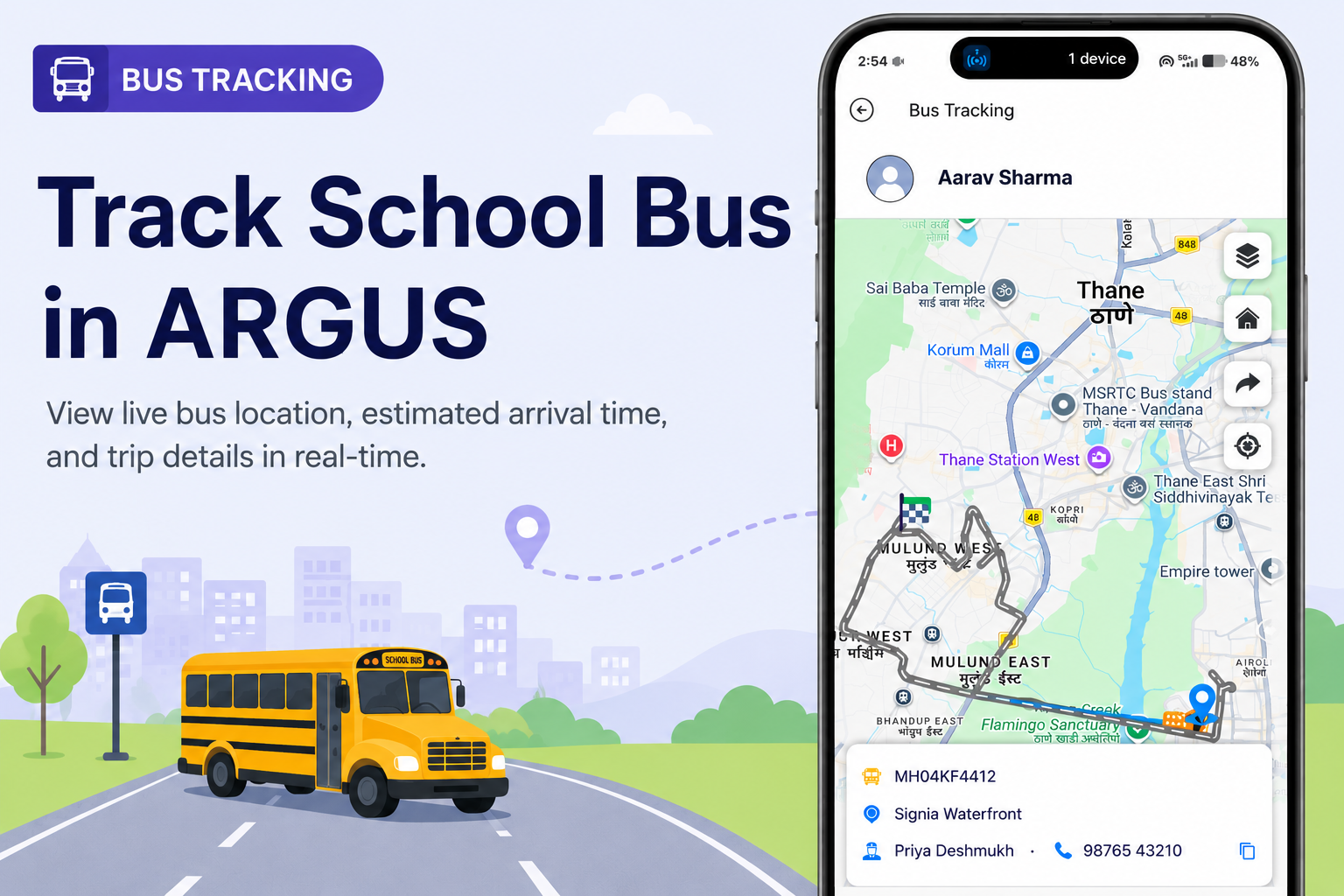
Bus Tracking in ARGUS lets you view your school bus trip on a live map and check key trip details like the bus number, ETA, and pickup/drop location. You can access it anytime from the More menu.
What You’ll Learn
- How to open Bus Tracking in ARGUS
- What you’ll see when the trip is active vs not active
- How to read the bus tracking screen (ETA, bus details, trip timings)
Who Can Use This
- Parents and Students (both can access Bus Tracking)
- Available for K-12 + Pre-K users (based on school transport setup)
Before You Begin
- Make sure you are logged in to the ARGUS mobile app.
- Bus Tracking works only when your school transport is active for your profile.
The bus tracking feature is accessible to both students and parents.
Steps to Track the School Bus in ARGUS
Step 1: Open More
- Open the ARGUS app.
- Tap More (bottom navigation).
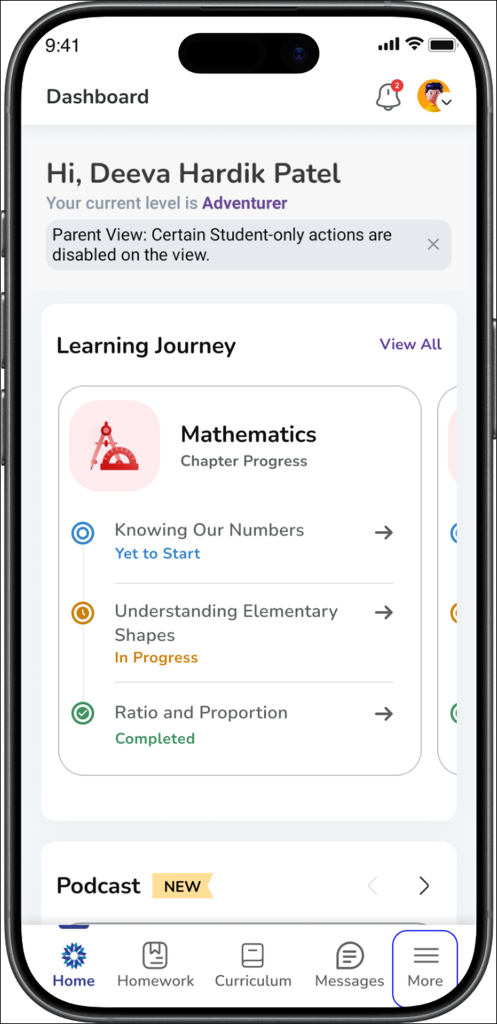
Expected Result: You’ll see a list of modules under More.
Step 2: Tap Bus Tracking
- Tap Bus Tracking
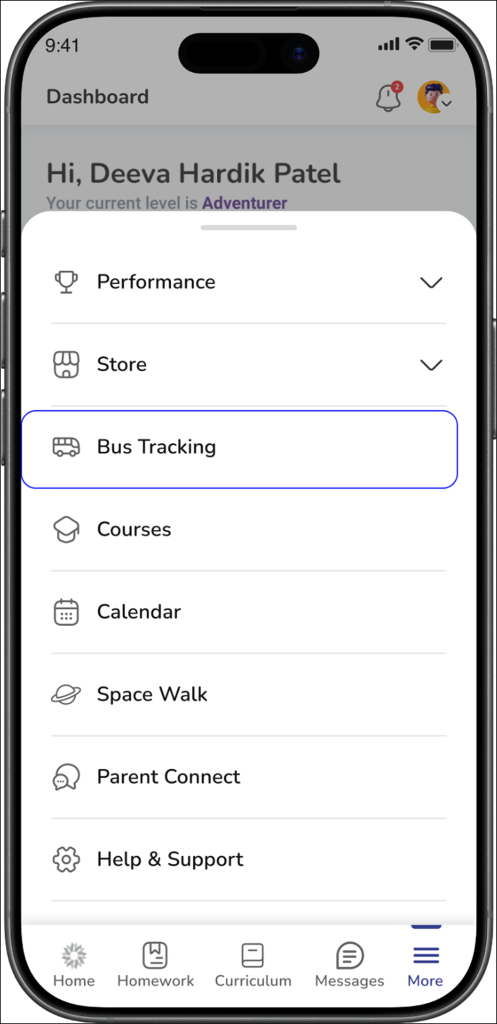
Expected Result: Bus Tracking screen opens. Now there are two possible scenarios:
Scenario A: Trip is NOT active (bus is not running right now)
If the bus trip has not started (or the trip is already completed), you may see a pop-up message:
Smart Bus
“Tracking is available only during the active trip”
- Tap OK
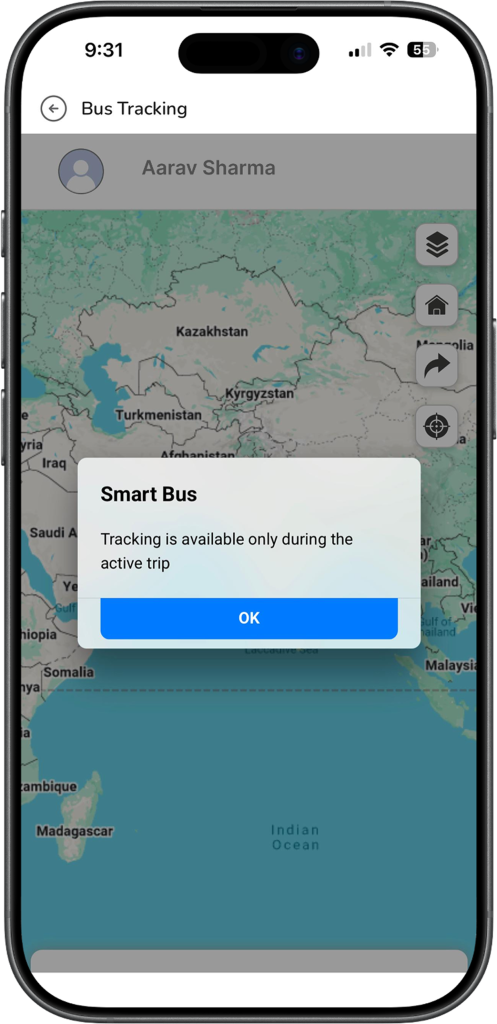
Expected Result: You can close the message and check again later when the trip is active.
Tip: Tracking usually works during school pickup/drop trip times.
Scenario B: Trip is active (bus is running)
When the trip is active, you will see the live tracking screen.
Step 3: View the live map
- On the map, you will see the bus icon moving on the route.
- The bus location updates as the bus moves.
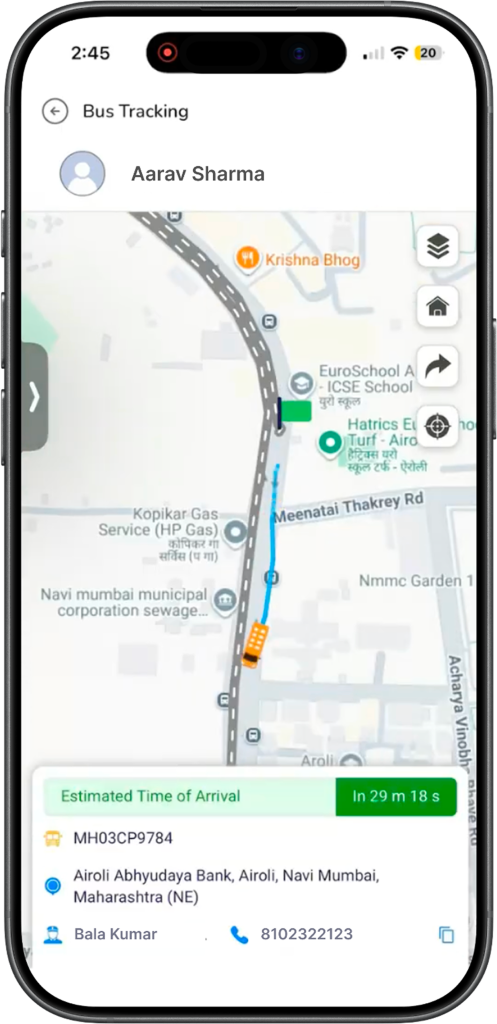
Expected Result: You can track where the bus is currently and how it is moving on the route.
Step 4: Check ETA and trip details (bottom panel)
At the bottom of the screen, you will see details like:
- Estimated Time of Arrival (ETA) (example: “In 29m 18s”)
- Bus number / registration number (example: MH03CP9784)
- Bus Current in Location (example: Airoli Abhyudaya Bank, Airoli)
- Attendant name and contact number (person responsible for students in the bus)
Expected Result: You can quickly understand how long the bus will take and which bus/route is assigned.
Step 5: Expand for more details
If you slide the bottom panel up (expand it), you can see more information such as:
- Estimated Start time
- Actual Start time
- Trip route/stops details (as shown in the screen)
- Estimated End and Actual End (when the trip completes)
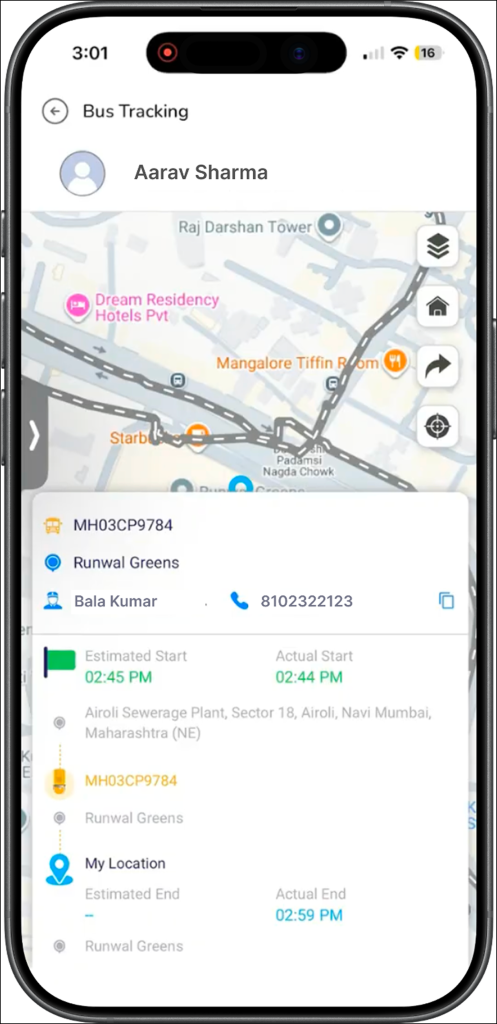
Expected Result: You can see a clearer summary of trip timings and start/end status.
Helpful buttons on the tracking screen (Quick guide)
On the map screen, you may see icons such as:
- Layers (to change map view)
- Home (to jump back to main route view)
- Share/Arrow (for map actions)
- Target/Locate (to centre/locate on map)
(Exact behaviour may vary slightly by device.)
